How to Import FxJournalStats Trades into Notion
Updated: June 12, 2026
FxJournalStats can send your uploaded platform trades straight into your Notion trading journal — no CSV, no manual mapping every time. This is useful when you analyze trades from platforms like TradingView, MT5, cTrader, Tradovate, or Custom Upload, then want those trades in a Notion journal alongside your notes and AI reviews.
Publishing writes execution data (Account, Date, Direction, Pairs, Profit/Loss), your journal fields (model, tags, rating, session, and any custom fields you've added), and your trade notes as the page body. It's safe to re-run: a trade that's already in the target database is never written twice, so publishing after every import is the normal way to use it — not a one-time migration.
If you'd rather review a file before it reaches Notion, or you don't have a Notion connection, the CSV export below still works and stays unchanged.
Publish to Notion #
1. Filter the trades you want #
- Go to Upload → Settings.
- Use the account, date, and trade filters to choose which trades to publish.
- The Trading journal card shows how many trades are in the current filter.
2. Click Publish to Notion #
- Click Publish to Notion. If this is your first time publishing to a given database, you'll pick the database and confirm (or adjust) the column mapping — FxJournalStats auto-matches columns by name, including the FxJournalStats template and most hand-built journals.
- After that first mapping, later publishes to the same database skip straight to a confirm screen — one click.
- Runs of 25 trades or fewer finish immediately. Larger runs continue in the background; progress shows on the settings card, so you can keep working.
3. Keep journaling in Notion #
Once a trade is published, Notion owns the journal fields and the note — model, session, tags, rating, whether you followed your rules, and the page body. Republishing corrects execution data (date, direction, price, P&L) if a broker export adds a fill you didn't have before, but it never overwrites what you've written in Notion. Journal in the app before you publish if you want those values to carry over; edits made in FxJournalStats after the first publish stay in the app only.
Limits and errors #
- One publish covers up to 500 trades. Above that, narrow your date filter and publish in batches — already-published trades are skipped, so overlapping ranges are fine.
- A database with more than one linked table (a Notion multi-data-source database) isn't supported yet as a publish target.
- If some rows fail — a rejected property value, a rate limit, a database that's no longer shared — the result shows which ones and why, and Retry failed re-runs just those rows.
Export CSV instead #
Prefer a file you can review before it touches Notion, or don't have Notion connected? Use Export CSV → For Notion import on the same card, then import it by hand.
The Notion CSV export focuses on clean journal fields such as Account, Date, Direction, Pairs, and Profit/Loss. Optional journal fields like model, tags, rating, and session are left blank so you can fill them inside Notion.
Note on the ID column: the CSV's FxJournalStats Trade ID column now contains the trade's stable upload ID rather than its internal row ID. If you have an existing Notion journal built from an older CSV export, it still works — dedup checks both formats, so nothing needs to change on your end.
Before You Start #
You need:
- Uploaded trades in FxJournalStats.
- A Notion trading journal database.
- Matching or similar database columns for Account, Date, Direction, Pairs, and Profit/Loss.
If you do not already have a trading journal database, duplicate the FxJournalStats Notion trading journal template first. The template gives you a database with the right trading journal structure before you import your CSV.
Importing into an existing database is recommended. If you import the CSV into a blank Notion page, Notion may create a brand new database and guess the property types incorrectly. For example, fields like Followed rules may become text instead of a checkbox, or Profit/Loss may need to be changed manually to a number property.
If your Notion database uses formula columns for values like DOW, Month, Year, WIN, or BE, keep those formulas in Notion. The CSV export does not need to fill them.
Step 1: Open Upload Settings #
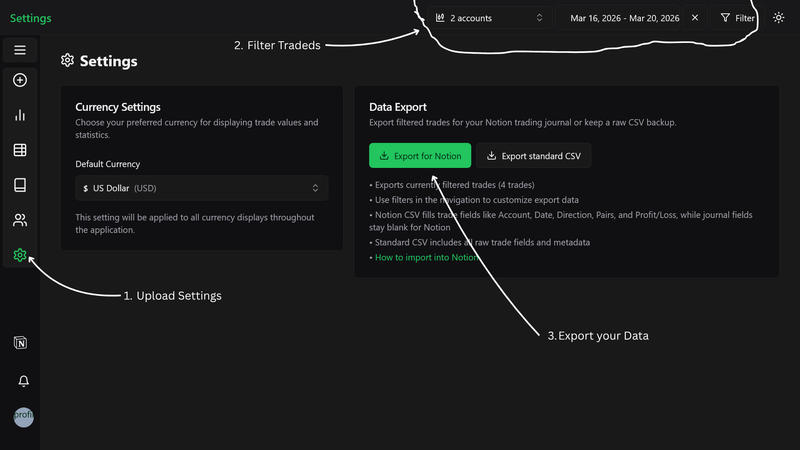
1. Filter the Trades You Want to Export #
- Go to Upload -> Settings page.
- Use the account, date, and trade filters to choose the trades you want to send to Notion.
Note: Only the currently filtered trades are included in the export, so check your filters before downloading the file. If you already imported older trades into Notion, filter the Upload page to only the new trades you want to add next. For example, use today's date range when you only want to add today's trades.
2. Export Data #
- Find the Trading journal card.
- Click Export CSV → For Notion import to download a Notion-ready CSV file.
Step 2: Import the CSV into Notion #
1. Import Your Trades into a Notion Database #
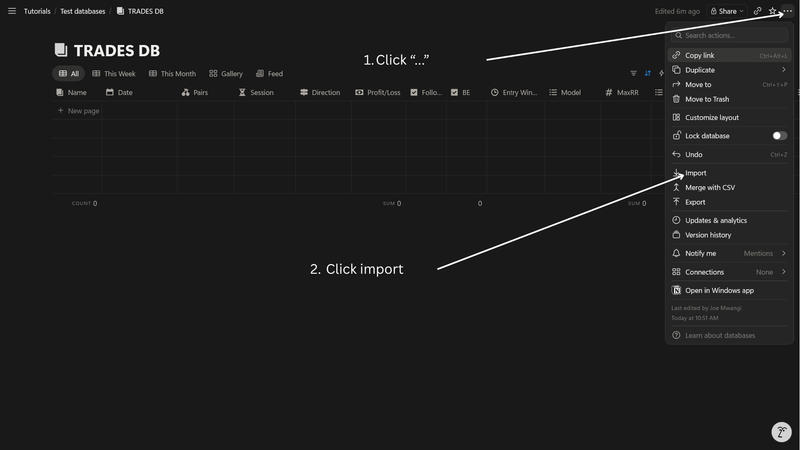
- Open the existing Notion database where you track trades.
- Click the "..." button in the top-right corner and select "Import".
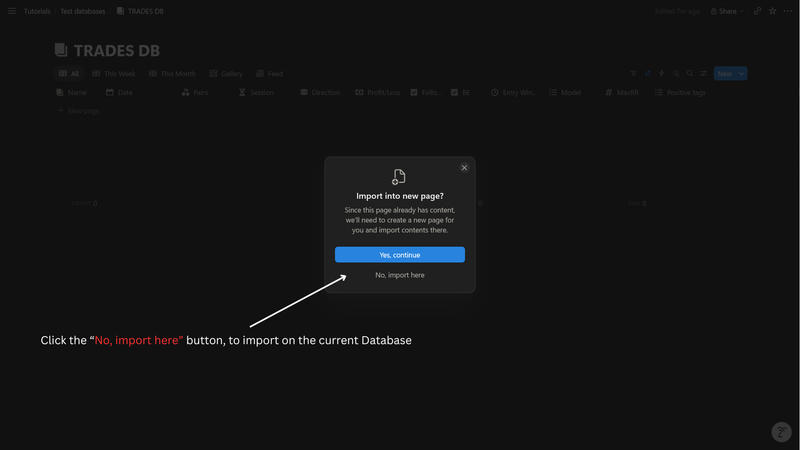
- Click the “No, import here” button to import trades to the current database.
2. Map the CSV Columns to Your Database Properties #
- After uploading the CSV, click "Map CSV headers" button.
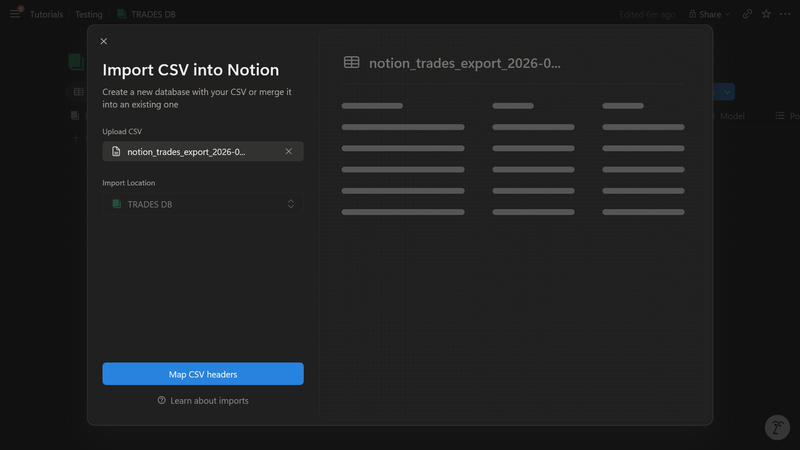
- Map CSV columns to Notion database properties:
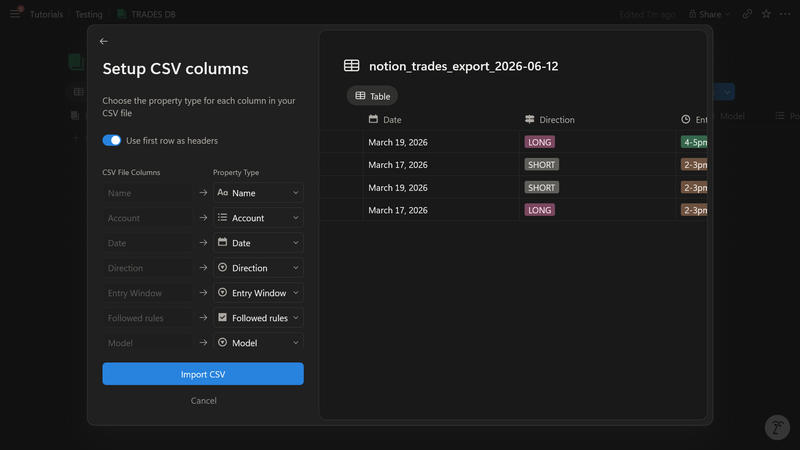
- Once you have finished mapping the columns, click "Import CSV".
Step 3: Confirm the Imported Fields #
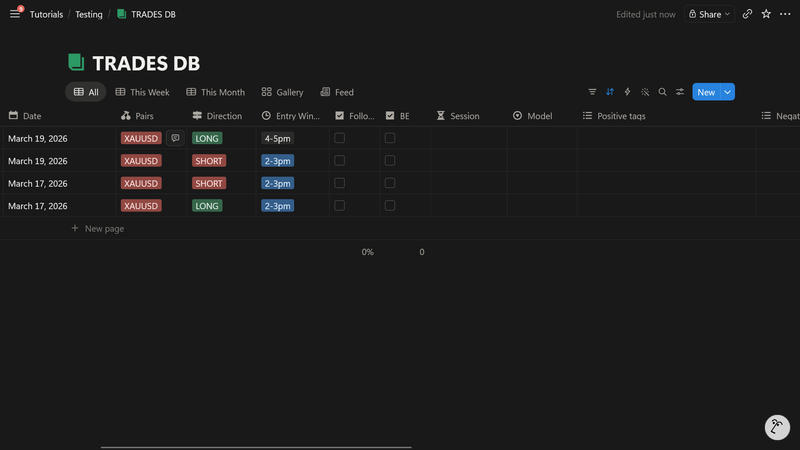
After the import, check that the important columns landed in the right places.
If Notion creates a new property instead of using an existing one, compare the column names. Notion matches imported CSV headers to database property names, so small naming differences can create duplicate properties.
Step 4: Finish Your Journal Review #
Once the trades are in Notion, fill the journal fields that require your own review:
- Model or Strategy.
- Session.
- Positive and negative tags.
- Rating.
- Whether you followed your rules.
This keeps the export fast while still leaving room for the parts of journaling that need your judgment.
Tips #
- Publishing is the faster path for most people — it writes journal fields and notes for you and skips trades you've already sent, so a weekly "publish this week's trades" habit needs no CSV at all.
- Duplicate the FxJournalStats Notion trading journal template if you want a ready-made database structure.
- Import into an existing database instead of a blank page so Notion can match CSV headers to the correct property types.
- Filter the Upload page to only new trades before exporting, especially if your latest platform file overlaps with trades already in Notion.
- Use FxJournalStats Trade ID as a reference when you need to check whether a trade was already imported.
- Export a small date range first to test your Notion database mapping.
- Keep your Notion property names close to the CSV headers when possible.
- Use the standard CSV export only when you need raw FxJournalStats fields for spreadsheets, backups, or custom analysis.