How to Export FxReplay Trade Data as CSV for Analysis
Updated: June 10, 2026
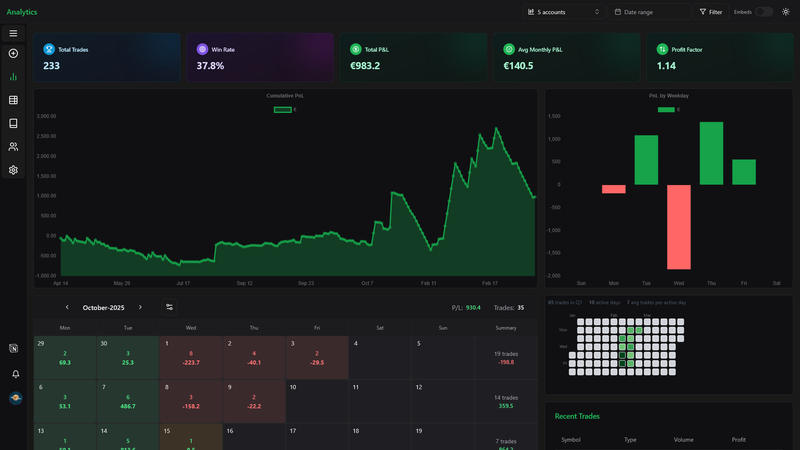
FxReplay is useful for practicing trade execution and reviewing market replays, but the real improvement comes from analyzing your replay history over time. By exporting your FxReplay trades as a CSV file, you can upload them to FxJournalStats and review your performance with charts, stats, and calendars.
This guide explains how to prepare your FxReplay export and upload it for analysis.
Step 1: Open Your FxReplay Trade History #
Log in to FxReplay and open the analytics page for your backtesting session.
Step 2: Export Your Trades as CSV #
Use the export option in FxReplay to save your trade history as a CSV file.
Step 3: Create an FxReplay Account in FxJournalStats #
Go to FxJournalStats Upload Accounts.
- Click Create Account.
- Enter a clear account name, such as "FxReplay Practice" or the strategy name.
- Select FxReplay as the platform.
- Save the account.
Step 4: Upload the CSV File #
Click the upload button on your FxReplay account or open the Add Trades modal, select your account and upload your file.
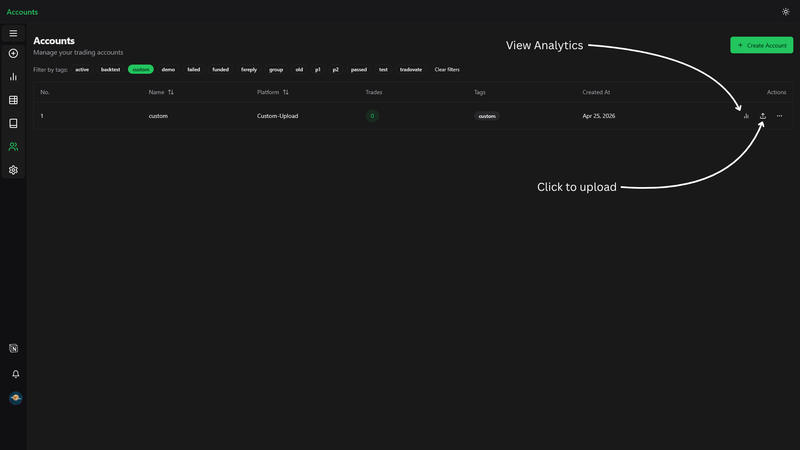
View Analytics #
After uploading, click the analytics button to view your export analytics.