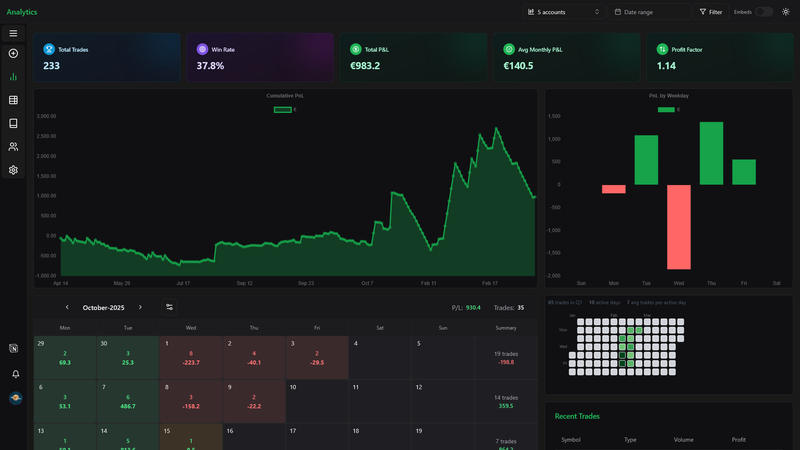
How to Export Your TradingView Trade Data and Turn It into Actionable Insights
Updated: June 13, 2026
TradingView is a powerful platform for traders, offering advanced charting tools and broker integration. However, analyzing your trading performance requires more than just chart, you need data. Exporting your trade history allows you to track your progress, spot trends, and optimize your strategy. In this guide, we'll walk you through the step-by-step process of exporting your TradingView trade data and using it for analysis.
Step 1: Open Your TradingView Chart #
Log into your TradingView account and navigate to the chart you typically use for trading.
Step 2: Ensure You Are Connected to Your Broker #
If you haven't connected your broker to TradingView yet, you'll need to do so. Your broker integration allows you to track live trades and historical data.
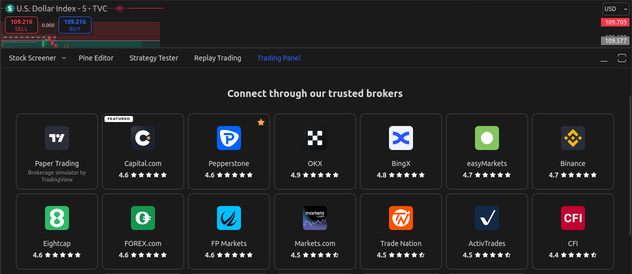
Step 3: Click on Your Broker's Name #
At the bottom panel of the TradingView screen, you'll see your broker's name. Click on it to open a dropdown menu with available options.
From the dropdown menu, find and click on the "Export Data" option. A pop-up window will appear with export settings.
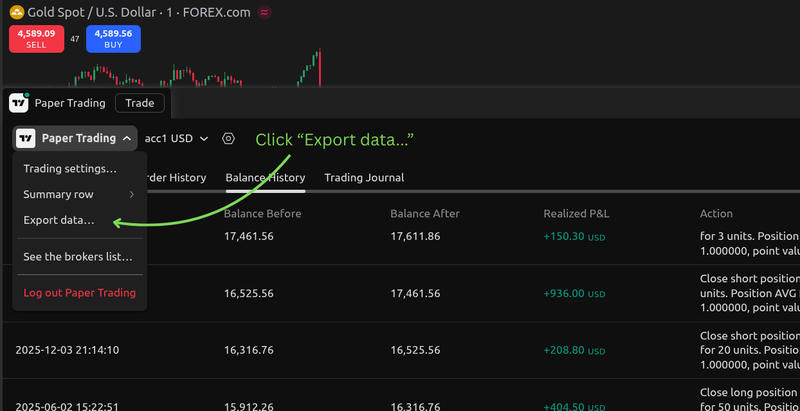
Step 4: Choose "Balance History" #
In the pop-up window, locate the "Balance History" dropdown menu. This ensures you're exporting past trades instead of live orders or open positions.
Once you've selected "Balance History," press the "Export" button. Your trade history file will be downloaded to your computer in CSV format.

Step 5: Create a TradingView Account in FxJournalStats #
Go to FxJournalStats Upload Accounts.
- Click Create Account.
- Enter your account name.
- Select TradingView as the platform.
- Save the account.
Step 6: Upload Your Export #
Click the upload button on your TradingView account or open the Add Trades modal, select your account and upload your file.
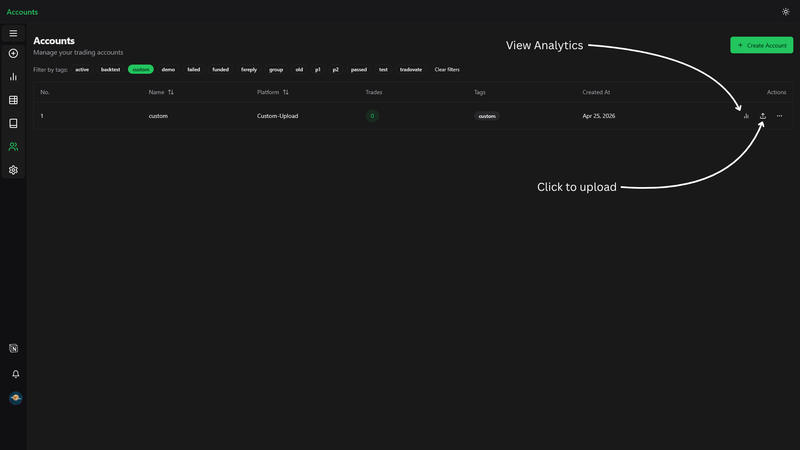
View Analytics #
After uploading, click the analytics button to view your export analytics.