How to Export DAS Trader Trade Data as CSV for Analysis
Updated: June 30, 2026
DAS Trader exports list individual fills (executions), not closed trades with profit already calculated. FxJournalStats has a dedicated DAS Trader importer that auto-detects your CSV format, pairs buy/sell and short/cover fills into round-trip trades, and computes gross P&L.
This guide explains which exports work, how to upload them, and what to expect in your analytics.
Step 1: Export from DAS Trader #
Choose the export that matches your goal:
Trades tab (single session) #
To export from the Trades tab in DAS:
- Click the Trades window in your layout.
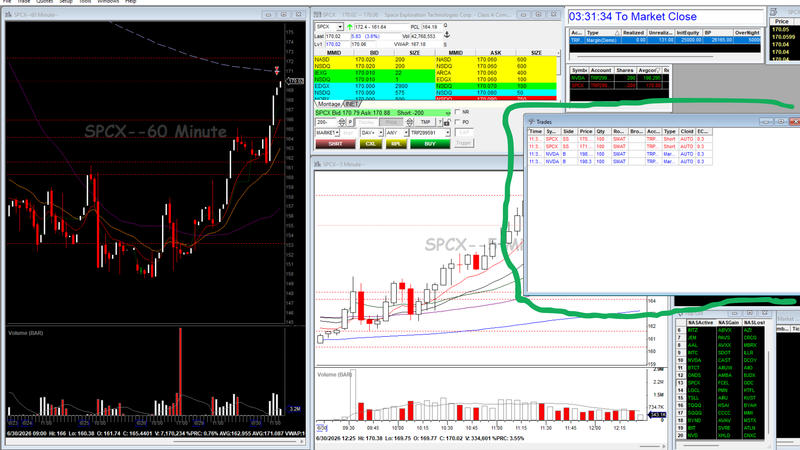
- If you don’t see the Trades tab:
- Navigate to the top menu and click Trade.
- Select Trades to add it to your layout.

- Right-click the Trades tab and click Export.
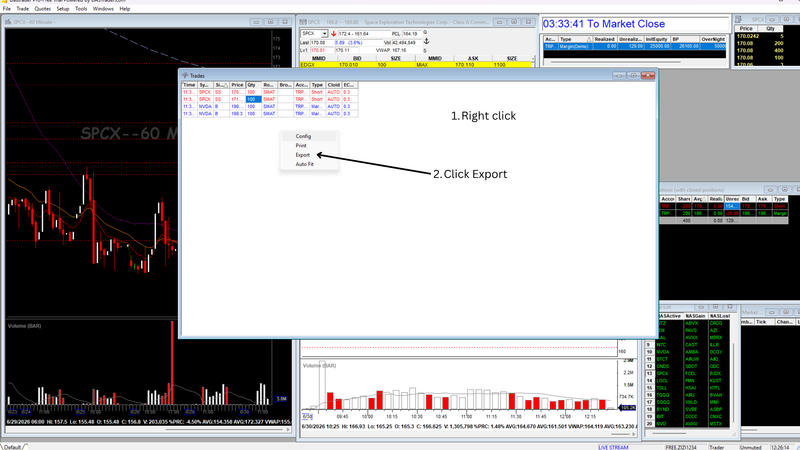
Headers include: Time, Symbol, Side, Price, Qty, and optionally ECNFee for fees.
This format only includes time, not the session date. When you upload, select the trade session date in the Add Trades modal.
Side values:
B— buy (opens a long or covers a short)S— sell (closes a long)SS— short sell (opens a short)
Best for: one trading day at a time.
Trade → Report (multi-day history) #
In the top menu, click Trade → Report.

A report window opens. Then:
- Under Report Items, check Tickets (recommended for fees) or Executions (fills only, no fee columns).
- Click Refresh.
- Under Format, select CSV Text File.
- Choose the download path.
- Click the Export button.
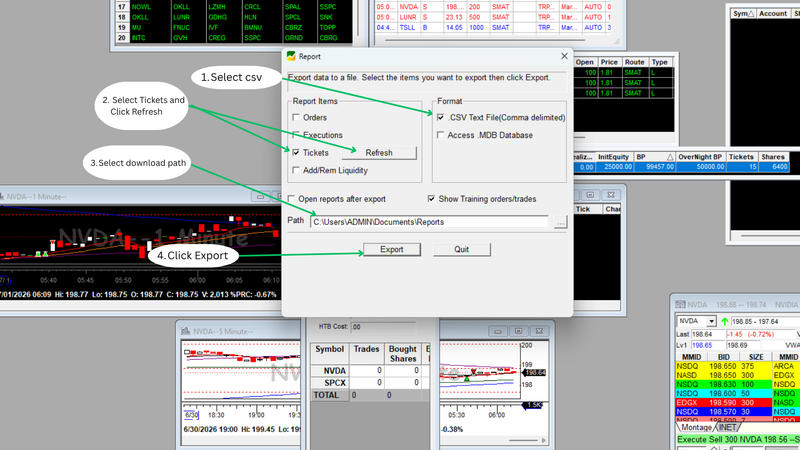
Tickets headers include: TicketID, TradeID, symb, B/S, SHORT, commission, RouteFee, and time. Commission on each round trip is the sum of entry and exit commission + RouteFee from the matched fills.
Best for: accurate fee tracking over a date range.
Do not use: Trade → Report → Orders #
The Orders report lists working orders, not executed fills. FxJournalStats will reject this export. Use Trades or Tickets instead.
Step 2: Create a DAS Trader account in FxJournalStats #
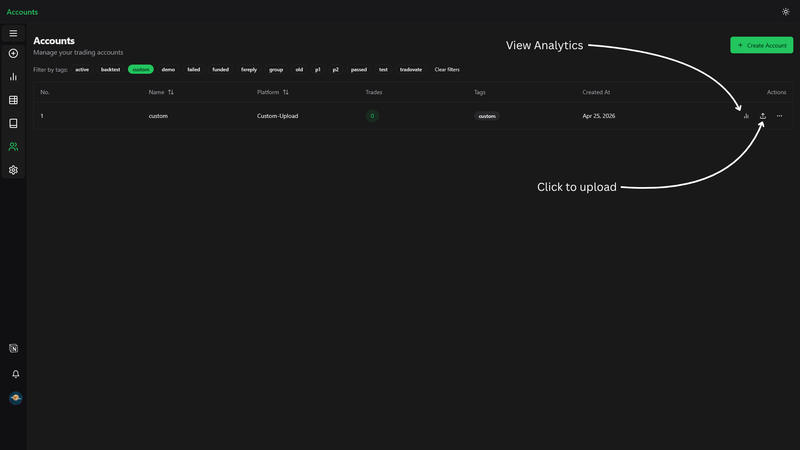
Go to Upload → Accounts.
- Click Create Account.
- Enter a clear account name (for example your DAS login or prop firm account).
- Select DAS Trader as the platform.
- Save the account.
Step 3: Upload your CSV #
Open the Add Trades modal, select your DAS Trader account, and upload the CSV file.
After upload, FxJournalStats shows which format was detected:
- Session export — set the trade session date, then trades are parsed.
- Full history (Trades or Tickets) — dates (and fees for Tickets) are read from the file automatically.
Step 4: Review and upload #
Confirm the Trades found count in the modal matches your expected number of completed round trips, then click Upload Trades.
If some fills could not be paired, a yellow warning lists skipped rows — the rest of the file still imports.
View analytics #
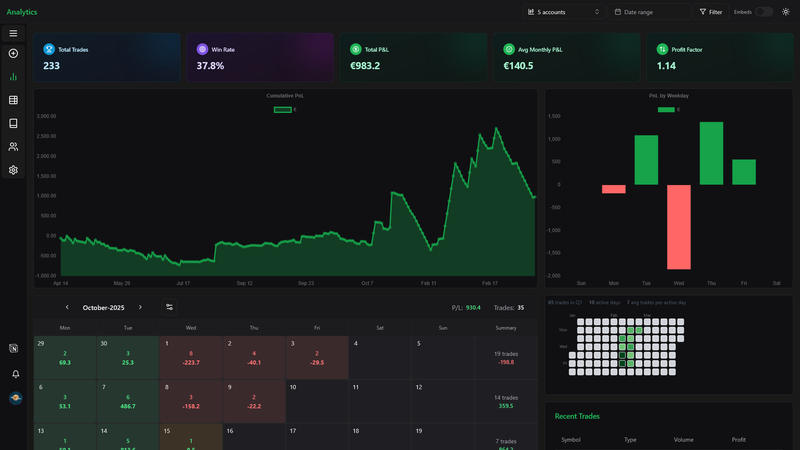
After uploading, open analytics for your DAS Trader account to review cumulative P&L, symbol breakdown, and calendar performance.
Tips #
- Export completed round trips where possible. Open positions or orphan closes at the end of the file are skipped with a warning — paired trades still import.
- Remove unrelated summary rows if your export includes them.
- If one file contains multiple accounts, all rows are imported; consider filtering by account in DAS before export.
- For multi-day history, widen the report date range so each sell includes its opening buy in the same file.
Troubleshooting #
"Select the trade session date before uploading"
Your file is a Trades tab export (time only). Pick the correct session date in the upload modal.
"This file is a DAS Orders report"
You exported Orders instead of Tickets. Re-export using Trade → Report → Tickets.
Skipped fills (yellow warning box)
If a sell appears before its buy in the export (for example a position opened on a prior day), that close fill is skipped and listed as a warning — the rest of the file still imports. Open positions with no matching close in the file are also skipped with a warning.
P&L differs from DAS
The importer calculates gross P&L from prices and quantity. Fees are in the commission field when exported (ECNFee on the Trades tab, or commission + RouteFee for Tickets). Other DAS adjustments may still differ slightly.