Frequently Asked Questions
Quick answers to common issues and questions about using FxJournalStats with your Notion workspace.
This message appears when you've created a journal in Fxjournalstats but haven't connected it to Notion yet. Until you link Notion, Fxjournalstats has no data to read, so charts, objectives, and calendars can't be created.
You'll see it in two places:
- On the Journal card on the dashboard, instead of the Charts / Objectives / Calendars links, you'll see a Click to link to Notion link.

- On a journal's Charts, Objectives, or Calendars page, you'll see a Share Your Notion Pages message with a Connect button.

Why this happens #
You're seeing this because one of the following is true:
- You just signed up and created your first journal, but haven't linked Notion yet.
- You removed Fxjournalstats from your Notion Connections (in Notion settings → My connections), which revoked access on Notion's side.
How to fix it #
- Click Click to link to Notion (or Connect). You'll be redirected to Notion's connection page.
- Check the page(s) that contain the database(s) you want Fxjournalstats to read. Sub-pages and databases inside a shared page are shared automatically.

- Click Allow access.
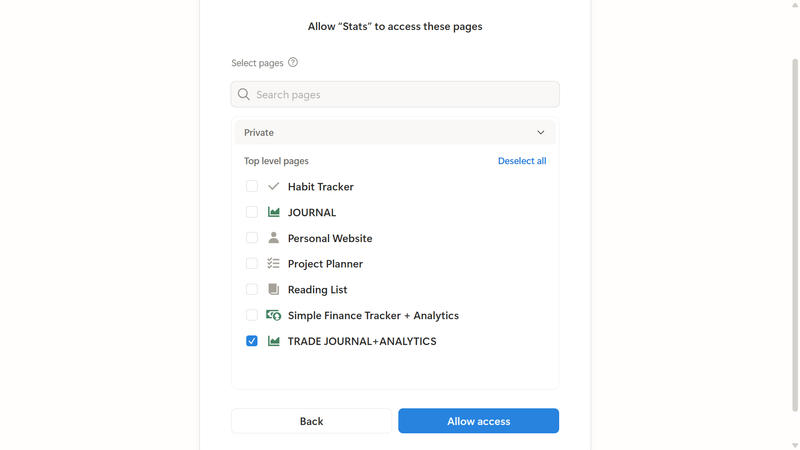
- You'll be redirected back to Fxjournalstats and the journal card will now show the Charts / Objectives / Calendars links instead of the Click to link to Notion prompt.
If you don't see your databases in the dropdown right after linking, give Notion a few seconds to index the shared pages and click the refresh icon next to the database dropdown. See Why are there no options when I try to select a Notion database? for more details.
Still need help? Contact support.