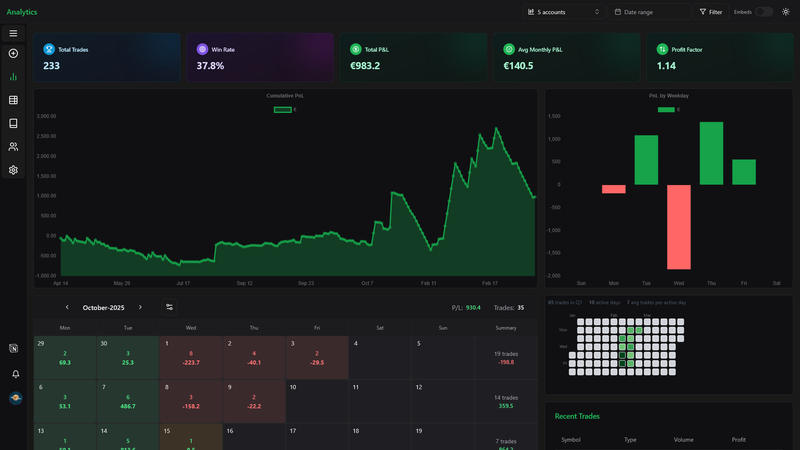
How to Export cTrader Trade History for Analysis
Updated: June 8, 2026
cTrader exports can include detailed deal history, closing volume, entry and closing prices, and net P&L. FxJournalStats has a dedicated cTrader importer so you can upload those exports without manually mapping every column.
This guide explains how to prepare a cTrader export and upload it for analysis.
Supported cTrader Files #
FxJournalStats supports cTrader uploads in these formats:
- XLSX
- HTML
- CSV
Step 1: Open Your cTrader History #
Open cTrader and go to the section where your trading history, deals, or closed trades are shown.
You want the export that includes completed trades or deals, not only open positions.
Step 2: Export Your Trade Data #
Use cTrader's export/download option to save your trade history.
XLSX is usually the easiest format to keep structured, but CSV and HTML are also supported.
Step 3: Create a cTrader Account in FxJournalStats #
Go to FxJournalStats Upload Accounts.
- Click Create Account.
- Enter your account name.
- Select cTrader as the platform.
- Save the account.
Step 4: Upload Your Export #
Click the upload button on your cTrader account or open the Add Trades modal, select your account and upload your file.
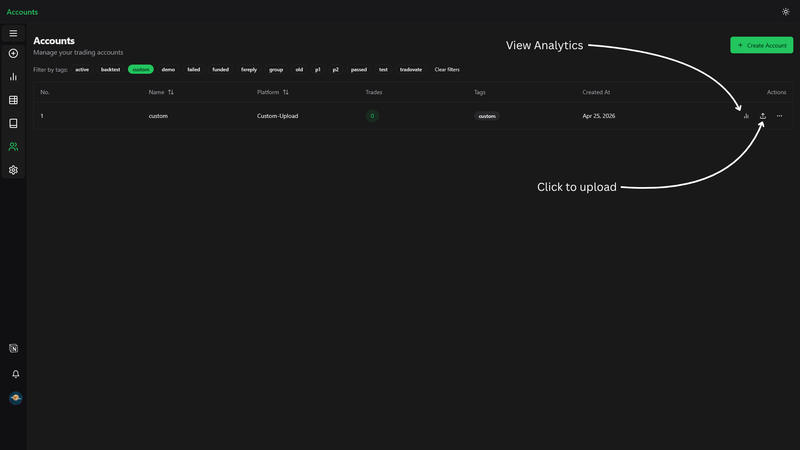
View Analytics #
After uploading, click the analytics button to view your export analytics.