How to Export MetaTrader 5 Trade History as HTML for Analysis
Updated: June 15, 2026
MetaTrader 5 includes a built-in account history report that can be exported and uploaded to FxJournalStats. This is the recommended way to import MT5 trades because the dedicated importer understands the structure of MT5 history reports.
This guide walks through exporting your MT5 trade history as an HTML report and uploading it for analysis.
Step 1: Open Account History in MT5 #
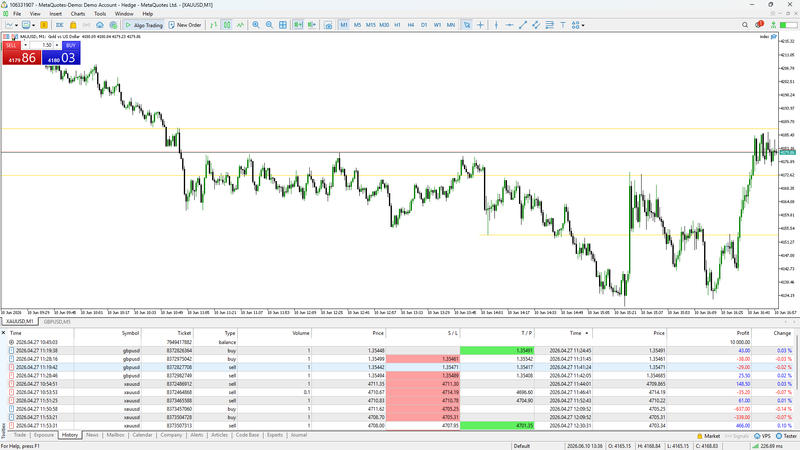
Open MetaTrader 5 and go to the Toolbox panel. You can also use Ctrl + T shortcut.
Select the History tab. This is where MT5 shows your closed deals, orders, deposits, withdrawals, and account history details.
Step 2: Choose the Date Range #
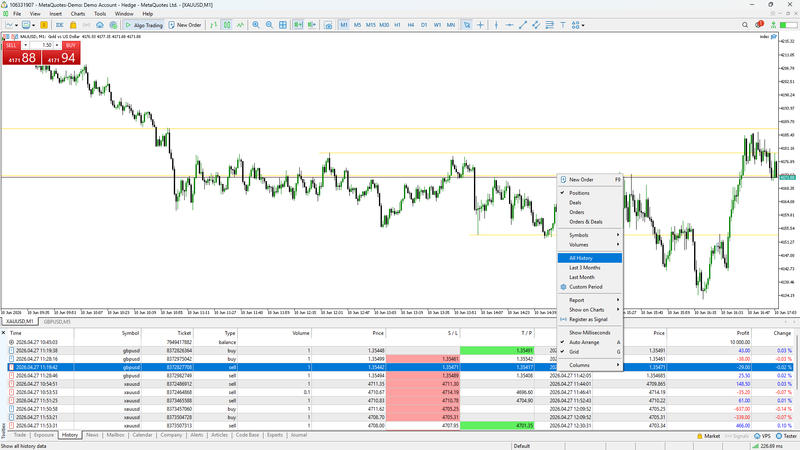
Right-click inside the History tab and choose the date range you want to export.
Common options include:
- All History
- Last 3 Months
- Last Month
- Custom Period
Choose a range that includes the trades you want to analyze.
Step 3: Export the Report #
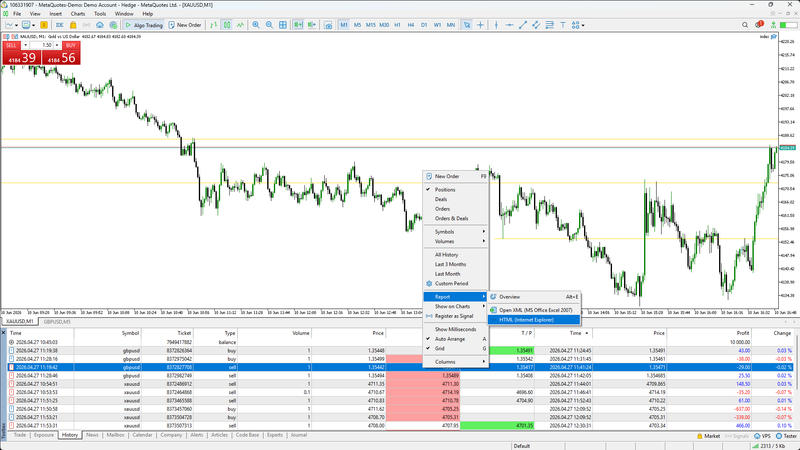
Right-click inside the History tab again and look for the report option.
Choose the HTML report export option, then save the file to your computer.
Depending on your MT5 version and broker, the menu text may vary slightly, but the goal is to save the account history as an HTML report.
Step 4: Create a MetaTrader 5 Account in FxJournalStats #
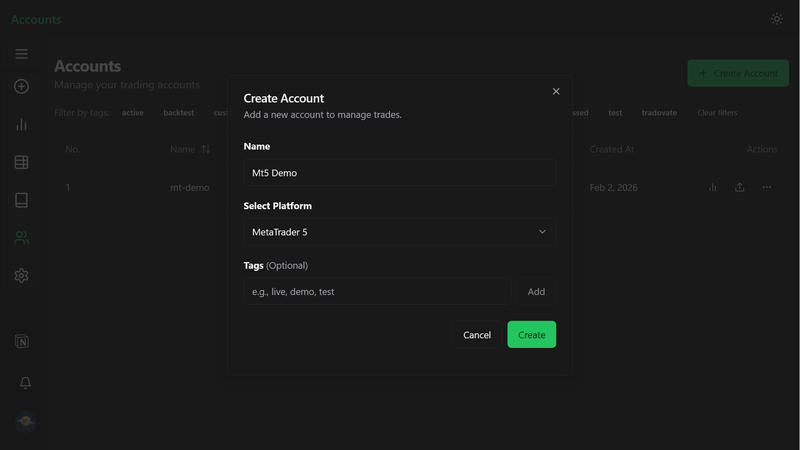
Go to FxJournalStats Upload Accounts.
- Click Create Account.
- Enter your MT5 account name.
- Select MetaTrader 5 as the platform.
- Save the account.
Step 5: Upload the HTML Report #
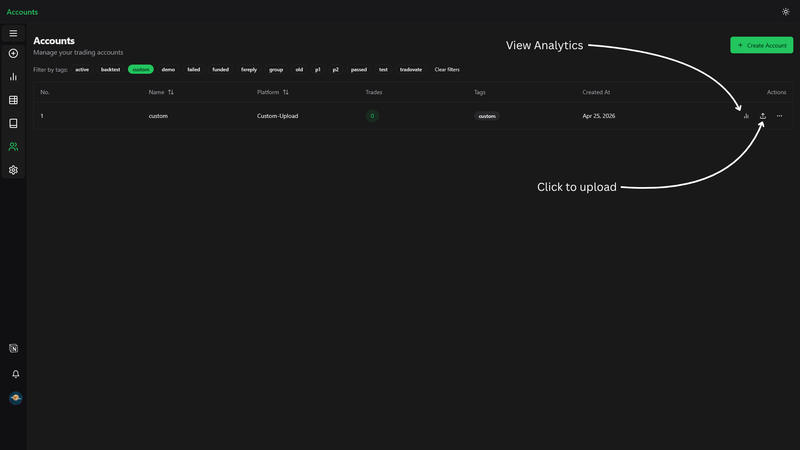
Click the upload button on your mt5 account or open the Add Trades modal, select your account and upload your file.
View Analytics #
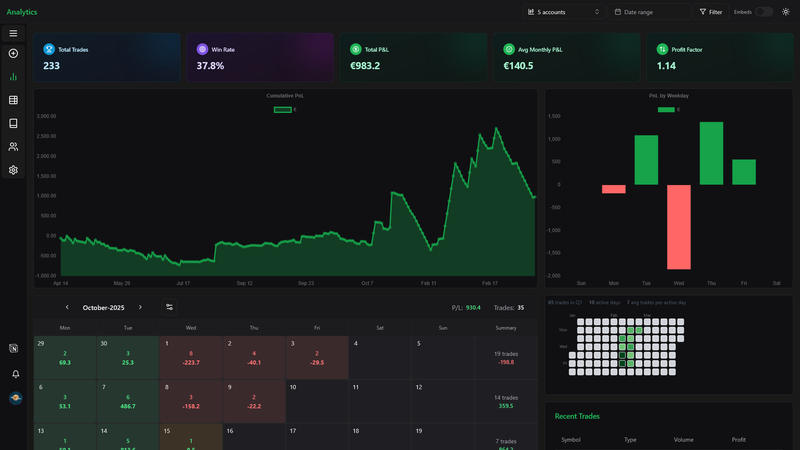
After uploading, click the analytics button to view your export analytics.
Troubleshooting #
If the upload does not produce trades:
- Make sure you uploaded the HTML report, not a screenshot or PDF.
- Confirm the selected MT5 date range includes closed trades.
- Avoid editing the HTML file before uploading.
- If your broker uses a heavily customized report format, try exporting a standard account history report again.