How to Export Tradovate Trade Data as CSV for Analysis
Updated: June 11, 2026
Tradovate exports can include fill IDs, quantities, buy and sell prices, P&L, and bought/sold timestamps. FxJournalStats has a dedicated Tradovate importer so those fields can be interpreted correctly without manual column mapping.
This guide explains how to prepare a Tradovate CSV export and upload it for analysis.
Step 1: Export Tradovate Trade Data #
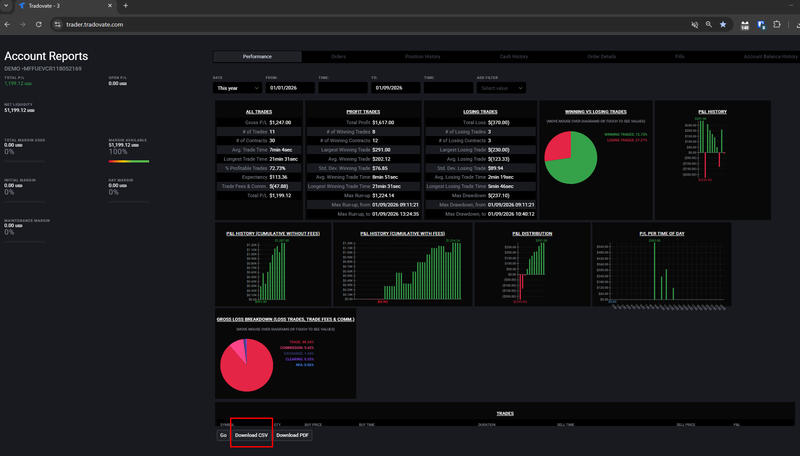
Log in to Tradovate and open the Account Reports and click on performance tab.
Choose the date range you want to analyze before exporting.
Click the "Download csv" button on the bottom left to save your trade data as a CSV file.
Step 2: Create a Tradovate Account in FxJournalStats #
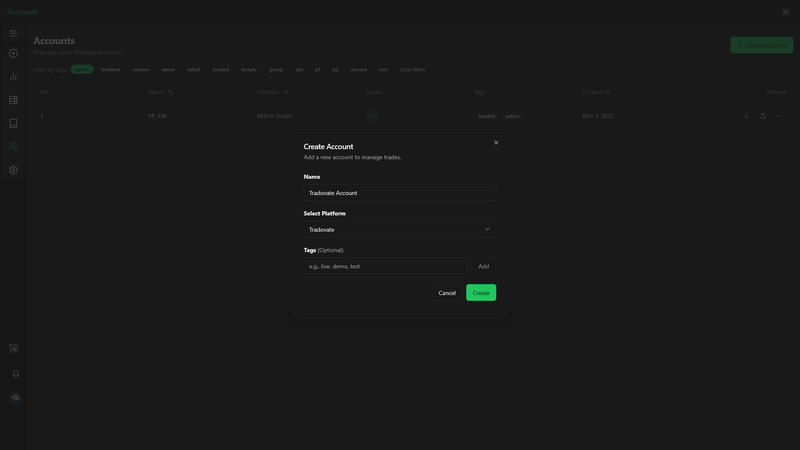
Go to FxJournalStats Upload Accounts.
- Click Create Account.
- Enter your Tradovate account name.
- Select Tradovate as the platform.
- Save the account.
Step 3: Upload Your CSV #
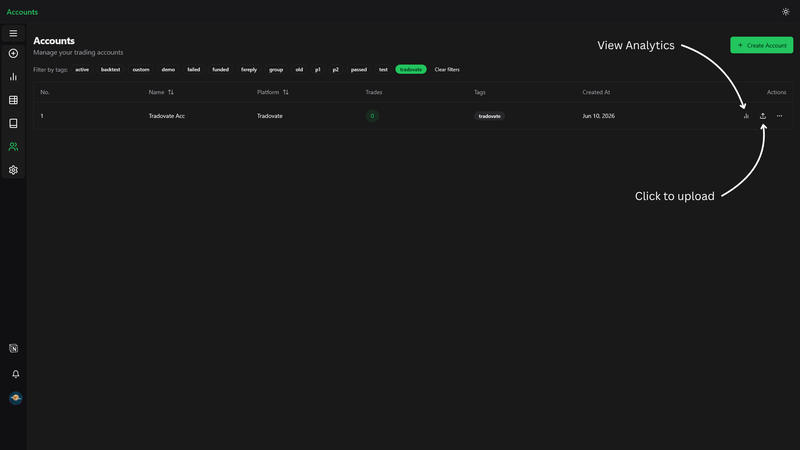
Click the upload button on Tradovate account or open the Add Trades modal, select your Tradovate account, and upload the CSV file.
View Analytics #
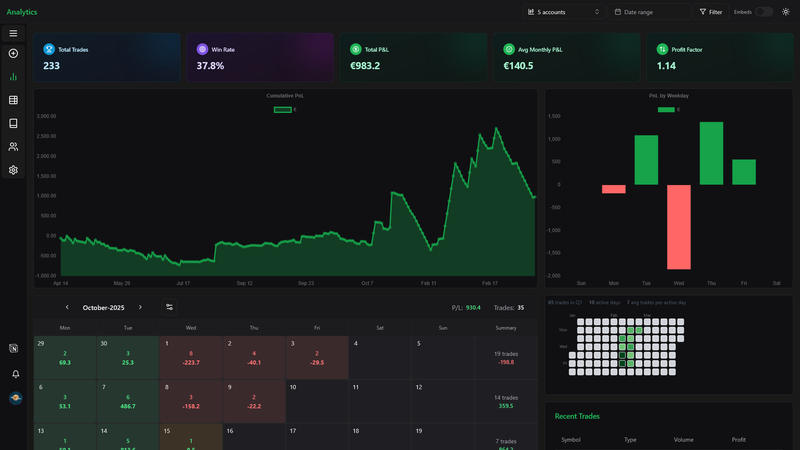
After uploading, click the analytics button to view your export analytics.
Troubleshooting #
If your upload does not produce trades:
- Confirm the file is a CSV export from Tradovate performance tab.
- Make sure the export includes completed trades, not only open positions.
- If you transformed the file in another tool, use Custom Upload with AI-assisted mapping.