How to Export MatchTrader Trade Data for Analysis: A Step-by-Step Guide
Updated: June 12, 2026
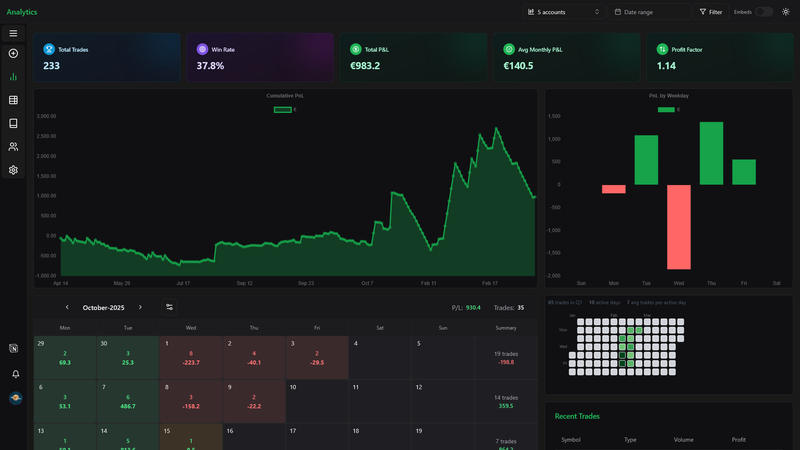
Analyzing your trading data is a powerful way to identify trends, optimize strategies, and improve performance. MatchTrader makes it simple to export your trade data, and with tools like FxJournalStats, you can transform your data into insightful charts and calendars.
Step 1: Login to MatchTrader #
Start by logging into your MatchTrader dashboard using your account credentials. Once inside, navigate to the "Closed Positions" tab. This tab contains all your closed trades, which are essential for accurate analysis.
Step 2: Download Trade Data #
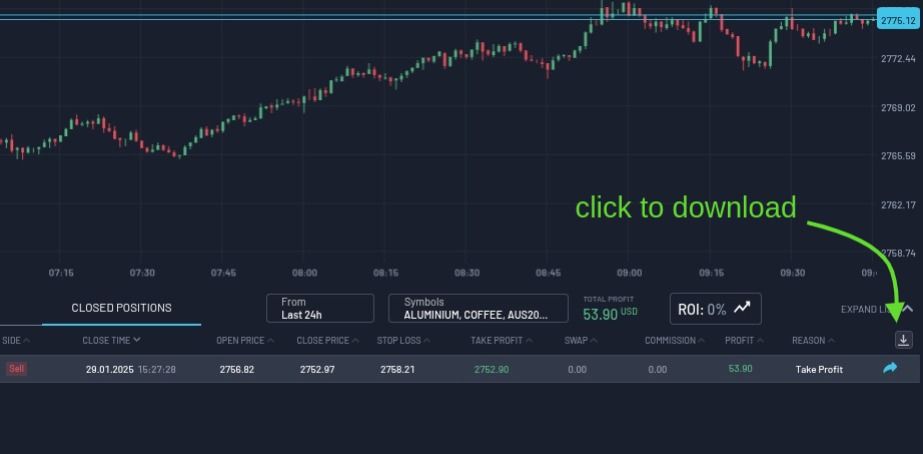
In the "Closed Positions" tab, click on the "Download" button. A modal will pop up with several export options.
Step 3: Configure Export Settings in the Modal #
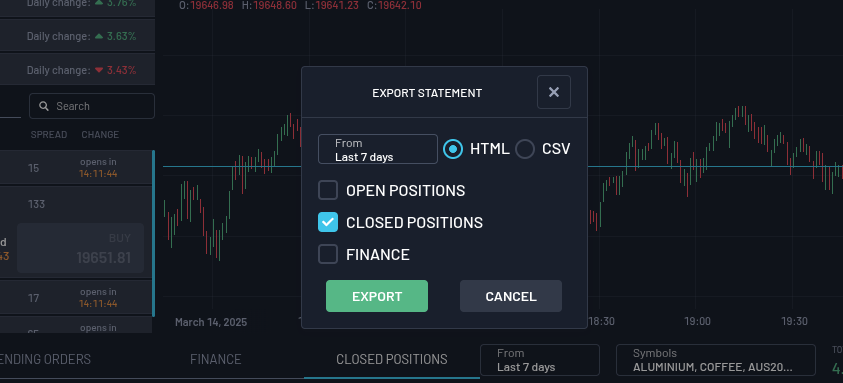
The modal will have three key sections:
Format Selection:
- Choose either HTML or CSV
Time Period:
- Select your desired range:
- Last 24 hours
- Last 7 days
- Last 30 days
- Last 366 days
- Tip: Start with "Last 366 days" to get all data.
Data to Include:
- Checkboxes:
- ☑️ Closed Positions (required for accurate analysis).
- ⬜️ Open Positions (leave unchecked to avoid incomplete data).
- ⬜️ Finance (also leave unchecked).
Export: Click the "Export" button to download your file.
Step 4: Create a MatchTrader Account in FxJournalStats #
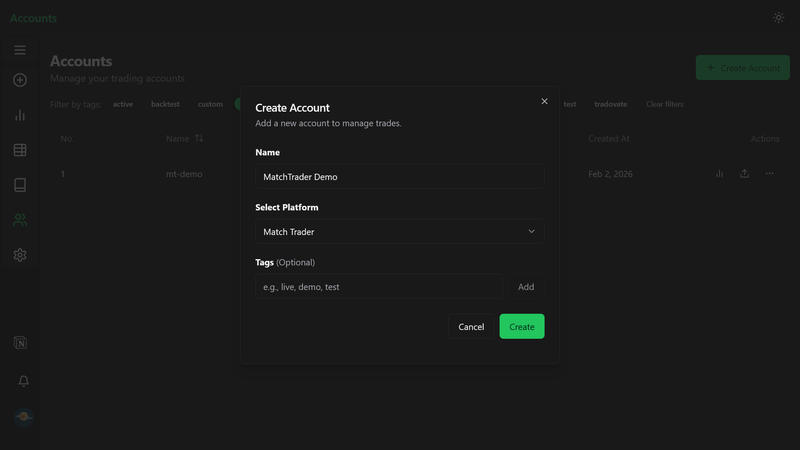
Go to FxJournalStats Upload Accounts.
- Click Create Account.
- Enter your MatchTrader account name.
- Select Match Trader as the platform.
- Save the account.
Step 5: Upload the Report #
Click the upload button on your MatchTrader account or open the Add Trades modal, select your account and upload your file.
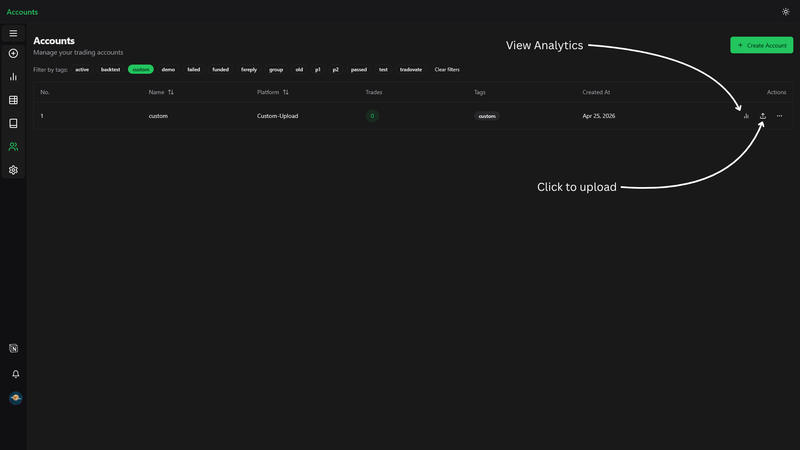
View Analytics #
After uploading, click the analytics button to view your export analytics.