Fxjournalstats can only read pages and databases you explicitly share with the integration. Sub-pages and databases inside a shared page are shared automatically. There are two ways to do it — most users use the first one.
Option 1: From Fxjournalstats (recommended) #
This is the most common flow and is what the Link to Notion, Create and Link, Link another Notion page, and Share buttons inside the app all use.
You can start the flow from any of these places:
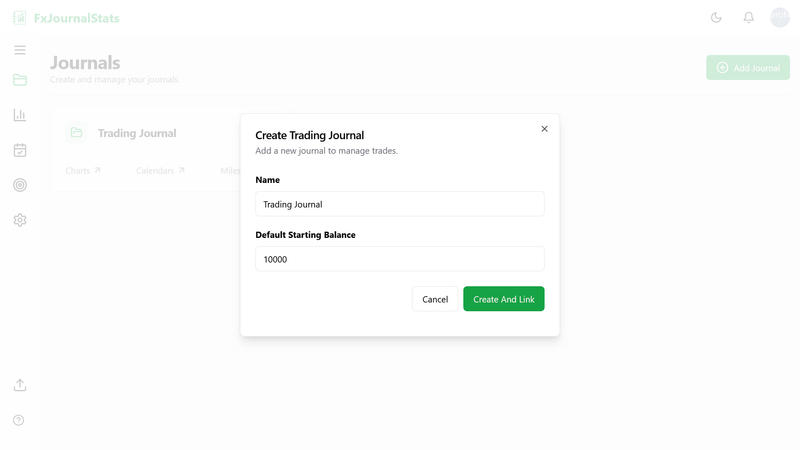
- Creating a new journal — on the dashboard, click Add Journal, fill out the form, and click Create and Link.
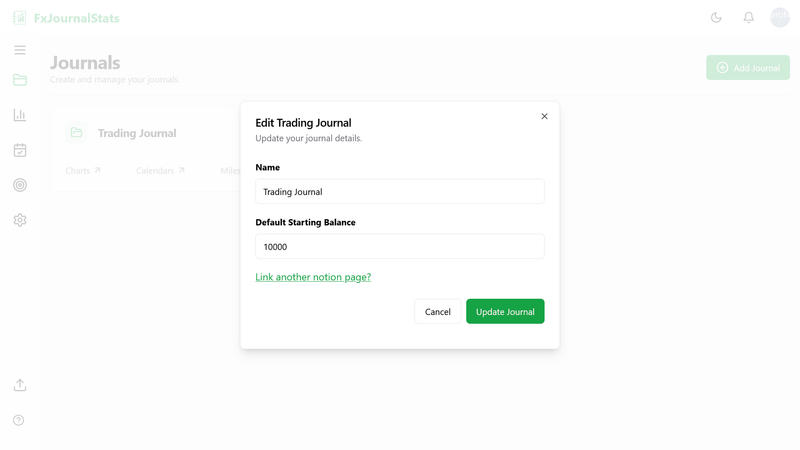
- Editing an existing journal — open the journal card's actions menu, choose Edit Journal, and click Link another Notion page.
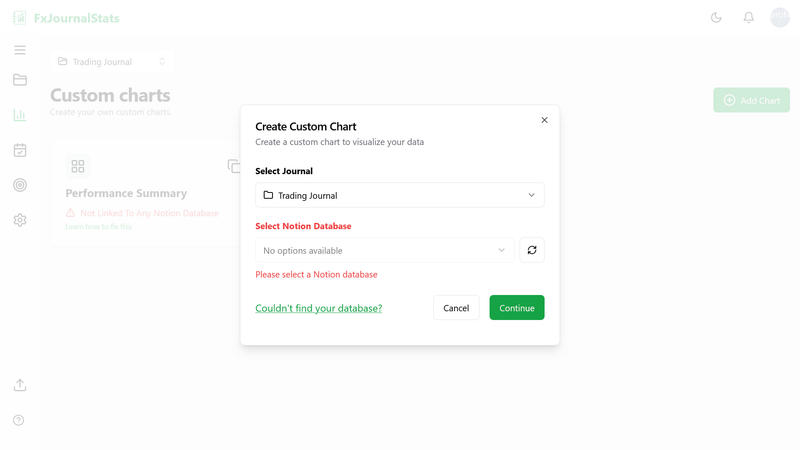
- Linking from a chart — in the Create Custom Chart modal, click Couldn't find your database?, then click the Share button (the green button with the Notion icon).
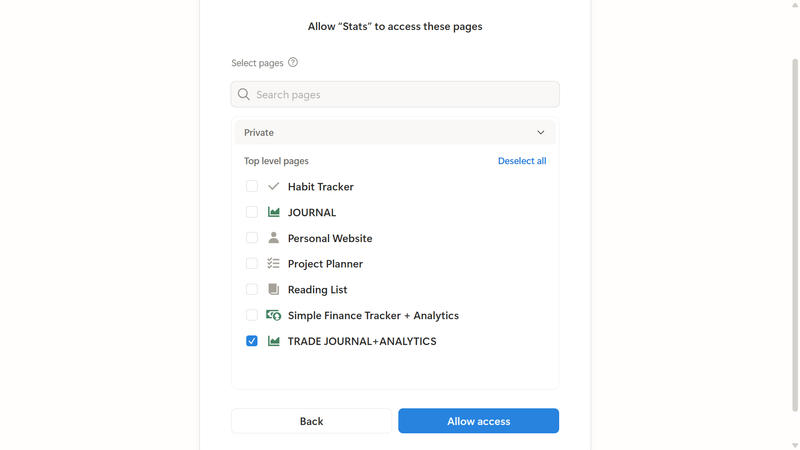
After you click any of those, Notion will open its connection page where you choose what to share:
- Click Select pages (or pick from existing pages) and check the page(s) that contain the database(s) you want Fxjournalstats to read.

- Click Allow access.
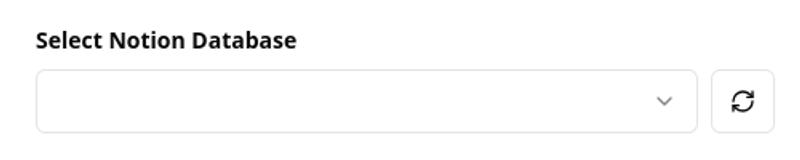
- You'll be redirected back to Fxjournalstats and your databases will appear in the database dropdown. If they don't appear immediately, click the refresh icon next to the dropdown.
Option 2: From inside Notion #
You can also share a single page directly from Notion without going through Fxjournalstats:
- Open the page that contains your database in Notion.
- Click the ... menu in the top right corner of the page.
- Select Connections and search for Fxjournalstats.

- Confirm access on the prompt that appears.
After either option, head back to Fxjournalstats and click the refresh icon in the database dropdown to pick up the new database. If you still don't see it after a minute, double-check that the page you shared actually contains the database (or share the database directly).